Posts

Image
  Hello Guys         I m back after 5 Year after stating my blogs. with a new windows experience. So today i start with a basic concept of windows power Menu. Now we learn step by step windows power buttons story. 1. Sign out :  Its use for kill all process on running user and go to login another user. 2. Shut down  :  Its use for kill all running process of current user and then power off all components of                                      your computer. 3. Restart  :  Its use for shutdown your user and then give a automatic command for power on  all                                              components again. 4. Switch user  :  Its use for keep safe your current user run...

History of Computer in Hindi

History of Computer in Hindi :  कंप्यूटर शब्द की उत्पति अंग्रेज़ी भाषा के कम्प्यूट शब्द से हुई है जिसका अर्थ है गणना करना अतः कम्प्यूटर का विकास गणितिय गणनाओं के उद्देश्य की पूर्ति के लिए किया गया है सबसे पहले कंप्यूटर का आविष्कार 600 ईसा पहले गिनतारे का विकास मेसोपुटामिया में हुआ, इसी प्रकार Calculator का आविष्कार 17वीं शताब्दी के शुरुआत में डानन नेपियर ने किया था जिसका उपयोग गणितिय गणनाओं हेतु किया गया था. इसके बाद 1671 में ब्रान गोट फ्राइड में गणना करने वाले कैलकुलेटर का आविष्कार किया. 1942 में बेब्ज पास्कल ने यांत्रिक कैलकुलेटर बनाया जिसे पास्कलिंग कहा गया यह कैलकुलेटर सिर्फ 6 व्यकित्यों के बराबर गणना कर सकता था.   History of Computer :  1822 में चार्ल्स बेबेज ने सबसे पहले Digital Computer बनाया पास्कलिन से प्रेरणा लेकर डिफ्रेन्सियल और एनालिटीकल एनिंजन का अविष्कार किया, उन्होंने 1937 में स्वचालित कंप्यूटर की परिकल्पना की जिसमे कृत्रिम स्मृति तथा प्रोग्राम के अनुरूप गणना करने की क्षमता हो, किन्तु हथर्न होलेरीथ ने भी पूरा किया ! पंचकार्ड की मदद से सारा कार्य खुद ह...

कंप्यूटर पर इंटरनेट ब्राउज़िंग के लिए कीबोर्ड शॉर्टकट

कंप्यूटर पर इंटरनेट ब्राउज़िंग के लिए कीबोर्ड शॉर्टकट यहाँ हमने  GOOGLE क्रोम ब्राउज़र  में प्रयोग होने वाले कीबोर्ड शॉर्टकट शामिल किये है, सामान्यतः ये कीबोर्ड अन्य ब्राउज़र में भी वही कार्य करते है।  नई ब्राउज़र विंडो खोलने के लिए :  Ctrl + N  उसी ब्राउज़र में नई टैब के लिए :  Ctrl + T प्राइवेट ब्राउज़िंग विंडो के लिए :  Ctrl + Shift + N वर्तमान टैब को बंद करने के लिए :  Ctrl + F4  या  Ctrl + W   वर्तमान ब्राउज़र विंडो को बंद करने के लिए :  Alt + F4 पिछले बंद हुए टैब को फिर से खोलने के लिए :  Ctrl  + Shift + T वर्तमान टैब को बुकमार्क करने के लिए :  Ctrl + D ब्राउज़िंग हिस्ट्री देखने के लिए :  Ctrl + H  डाउनलोड हिस्ट्री देखने के लिए :  Ctrl + J वर्तमान पेज में कुछ खोजने के लिए :  Ctrl + F खोजे गए शब्द के अगले परिणाम पर जाने के लिए :  Ctrl + G खोजे गए शब्द के पिछले परिणाम पर जाने के लिए :  Shift...

5 best pendrive tricks

Image
   5 Best Pen Drive tricks you must have to know in 2016  by pankaj bisht  hi Guys please chek this video for 5 best pendrive tricks,,, if u like this please like my page on you  tube & subscribe it.. Thank's
hello guys ...i m back with this amazing future laptop video.... must watch it... 2050 FUTURE LAPTOP UPLOADED BY PANKAJ BISHT:- by pankajbsht52

System Tweaks Tips and Tricks:

The Best Computer Tips and Tricks: System Tweaks Disable System Restore You can gain a lot of drive space by disabling System Restore. (You should already have a backup regimen in place before you do this.) In Vista, right-click My Computer, select Advanced system settings, click the System Protection tab, and uncheck any drives. In XP, right-click My Computer, then under System Tasks, click on "View system information." Click on the System Restore tab and click the box next to "Turn off System Restore on all drives" to disable it. Configure Windows Update Windows Update is great, but if it's set on autopilot, it will download updates that require a reboot, then pester you forever to install them, and eventually reboot on its own. Change the Windows Update settings (in the Windows Security section of the Control Panel) to download updates but ask you whether to install them. Disable Delete Confirmation You can disable the confirmation that pops up ...

Best Keyboard Shortcuts

Image
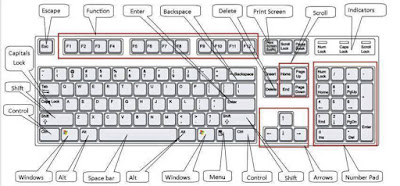
The Best Computer Tips and Tricks: Keyboard Shortcuts for Windows Vista and XP and Microsoft Office Windows Key+E The best part about shortcut keys is letting your keyboard do half the work. This is a perfect example: This shortcut allows you to open Windows Explorer with one quick keystroke. Windows Key+M This is the shortcut to keep in mind when you are at work doing anything but working—it allows you to minimize all of your open windows, leaving just the desktop left exposed. To restore the windows, hit Windows key+Shift+M. Another quick way to do this is Windows key+D, which shows your desktop; to restore, just repeat the same keystroke. This is a handy shortcut to have around the next time your boss is wandering through the office. Alt+Tab This allows you to easily scroll through all the windows you have open. If you're working in Word and referring to something in Explorer, for example, you can toggle back and forth between the two programs. You can also use t...