hello guys ...i m back with this amazing future laptop video.... must watch it... 2050 FUTURE LAPTOP UPLOADED BY PANKAJ BISHT:- by pankajbsht52
Posts
System Tweaks Tips and Tricks:
The Best Computer Tips and Tricks: System Tweaks Disable System Restore You can gain a lot of drive space by disabling System Restore. (You should already have a backup regimen in place before you do this.) In Vista, right-click My Computer, select Advanced system settings, click the System Protection tab, and uncheck any drives. In XP, right-click My Computer, then under System Tasks, click on "View system information." Click on the System Restore tab and click the box next to "Turn off System Restore on all drives" to disable it. Configure Windows Update Windows Update is great, but if it's set on autopilot, it will download updates that require a reboot, then pester you forever to install them, and eventually reboot on its own. Change the Windows Update settings (in the Windows Security section of the Control Panel) to download updates but ask you whether to install them. Disable Delete Confirmation You can disable the confirmation that pops up ...
Best Keyboard Shortcuts
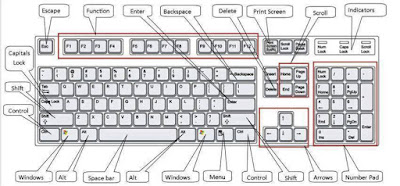
The Best Computer Tips and Tricks: Keyboard Shortcuts for Windows Vista and XP and Microsoft Office Windows Key+E The best part about shortcut keys is letting your keyboard do half the work. This is a perfect example: This shortcut allows you to open Windows Explorer with one quick keystroke. Windows Key+M This is the shortcut to keep in mind when you are at work doing anything but working—it allows you to minimize all of your open windows, leaving just the desktop left exposed. To restore the windows, hit Windows key+Shift+M. Another quick way to do this is Windows key+D, which shows your desktop; to restore, just repeat the same keystroke. This is a handy shortcut to have around the next time your boss is wandering through the office. Alt+Tab This allows you to easily scroll through all the windows you have open. If you're working in Word and referring to something in Explorer, for example, you can toggle back and forth between the two programs. You can also use t...
HTML and HTTP
hello frndzzzz.... their are some short information about html & http.. HTML and HTTP What is HTML? HTML stands for Hyper Text Mark-up Language. It is the programming code that is used to write web pages that are stored on servers. Every web page that you view in a browser is written in HTML or XML (a newer language). Your browser is designed to interpret and display web pages coded in HTML. What is HTTP? HTTP (Hypertext Transfer Protocol) is the set of rules for transferring files (text, graphic images, sound, video, and other multimedia files) on the World Wide Web. As soon as a web user opens a web browser, they are making use of HTTP. The beginning of almost every web page address begins with HTTP, which indicates that that the session being requested will use the HTTP protocol. HTTP concepts include the idea that files can contain references to other files (hyperlinks) whose selection will cause additional transfer requests. Every web server ...
How to use shortcuts on your Desktop....

hello frndzzz....... many new computer user dont know that how to use shorcut option on their desktop. so today i will tell uThat how to use...... Shortcuts on your Desktop A shortcut is path to a program and is represented by an icon on the desktop that you can click to access the program. This saves you from having to navigate the path to the actual location of the program. It's easy to add a shortcut: 1) Right-click anywhere on the desktop. A pop-up menu appears. 2) Select New, then Shortcut and the ‘create shortcut’ window opens. 3) Use the Browse button to find the path to the application or program. 4) Select the program you want and the path to it appears in the 'location of item' box. 5) Click Next and the ‘select a title box’ appears where you are asked to enter a name for the shortcut. 6) Enter a name and then click Finish. The new shortcut appears on the desktop. Just drag it to where on the desktop you want it. Thanks....... ...
QR CODES FOR CONNECTING WITH ME

hello frndzzzzzz........... scan below qr codes for more link for connecting with me In FB In GOOGLE + In Blogspot
Recover Deleted files in Windows with Free Tools
Recover Deleted files in Windows with Free Tools Have you ever deleted a file that you did not wish to and wanted to recover it but did not find it in the recycle bin? You probably deleted it permanently with Shift+Delete or emptied the Recycle Bin. Now what? Don't worry, you may still have a chance to get it back. This article lists some free software that can recover deleted files from your hard drive or any other storage device instantly. But how do the software mentioned below undelete deleted files? When files are deleted, Windows does not delete them from your hard disk. It marks the storage space as empty for new data to be written and deletes the index entry that tells the location of those files. Unless, new files are written on that space, the deleted files are still recoverable. That's what allows these software to recover deleted files. There are many free software that allow users to do this. Some of them are given below:- 1) Pandora Rec...